


When working with legacy Salesforce orgs, we often come across automations built long before Flows became the standard — the good old Process Builders. And if you’ve dealt with them recently, you probably already know that Salesforce is ending support for Process Builder at the end of December 2025[1]. Because of this upcoming change, many developers are now shifting their existing Process Builders over to Flow so they don’t end up with unsupported or unstable automations down the line.
While it may seem like an optimal approach to keep the system up to date with new automations, migrating Process Builders to flows has its own challenges. Now, if you take a closer look at any Process Builder, you’ll notice that it’s made up of two types of actions: Immediate Actions and Scheduled Actions. Immediate Actions execute as soon as the entry criteria are met, while Scheduled Actions occur at a set time — for example, 2 hours, 3 days, or 1 week after the immediate action has run. Converting the immediate actions is usually straightforward, but scheduled actions are where things get tricky — and that’s exactly what we’ll be exploring in today’s blog.
Before jumping into the migration itself, there are a few important points to keep in mind — starting with the order of execution.
Process Builders always run after a record is saved. In Flow, however, we have two different options:
Because of this difference, it’s crucial to understand which behavior your existing Process Builder relies on. Choosing the correct Flow type during migration ensures that your automation continues to run correctly — and efficiently.
Another important limitation to keep in mind is that only immediate-action branches can be merged into a single record-triggered Flow. Immediate and scheduled paths cannot coexist within the same Flow. As a result, each scheduled-action branch in a Process Builder must be recreated as a separate Flow.
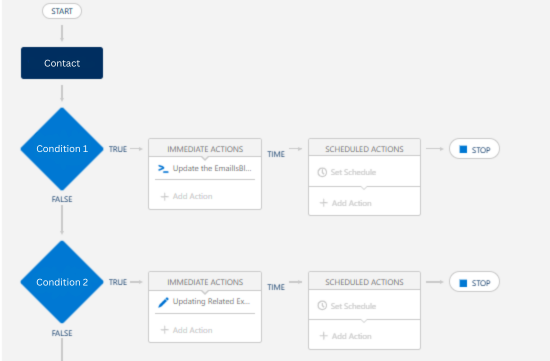
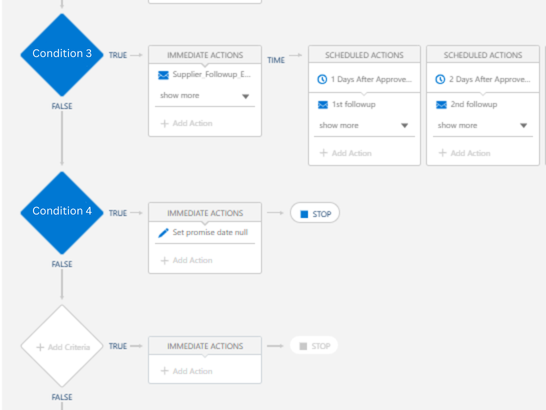
Let’s take the Process Builder below as an example and walk through the migration step by step.
From the images above, we can see that this Process Builder is built on the Contact object and contains four condition branches. Branches 1, 2, and 4 have immediate actions, while Branch 3 has a scheduled action.
The best practice in this scenario is to combine all immediate actions into a single Flow, and then create a separate Flow for each scheduled-action branch. This structure helps you mirror the original logic while keeping the automation clean, maintainable, and easy to debug.
In our example, each branch performs a different action — such as an Apex update, sending an email, or updating a record. We’ll start by combining the logic from Branches 1, 2, and 4 into the first Flow. To begin, create a record-triggered Flow and configure the following:
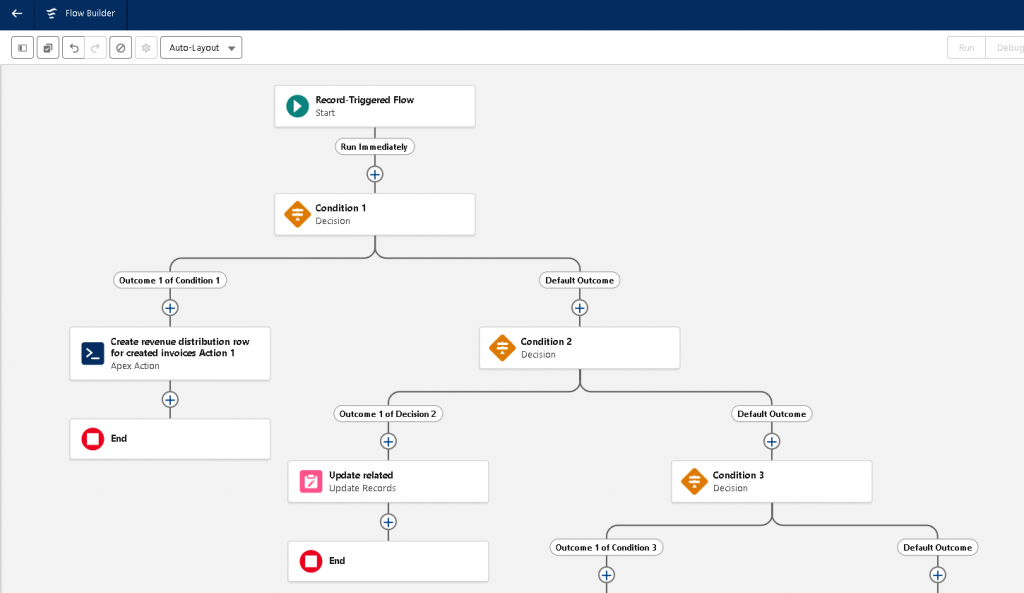
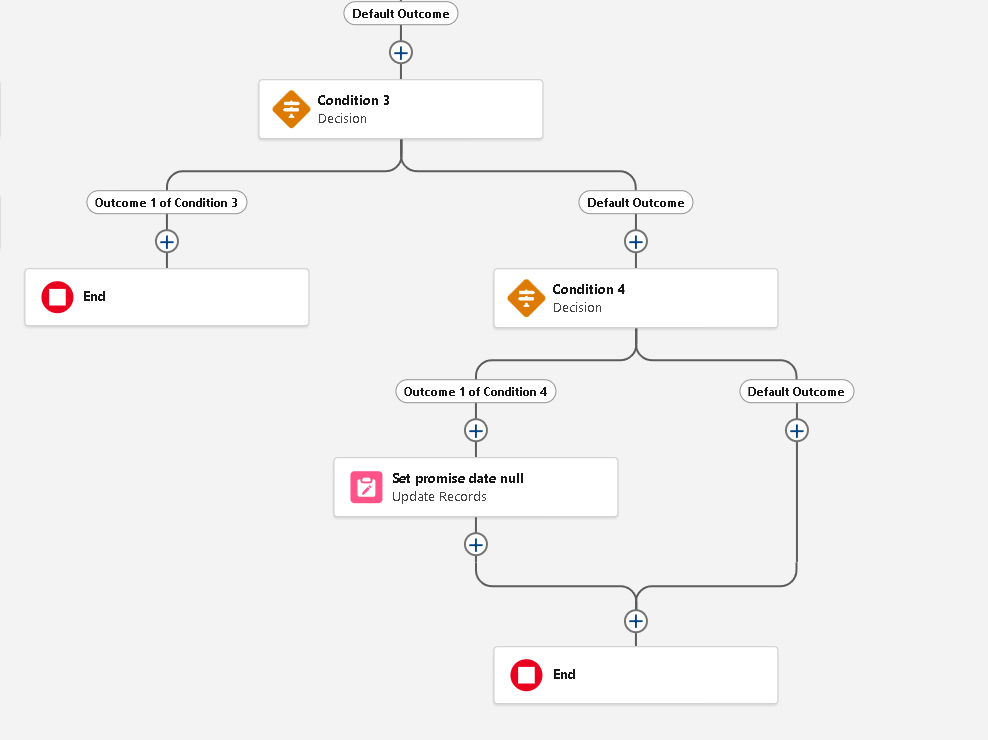
Next, recreate the branch logic using Decision elements, ensuring that each condition matches its corresponding Process Builder branch. Once this is done, your Flow should look like this,
As you may notice, you can configure the Decision element for Condition 3 and route its immediate path to an End element. Alternatively, you can skip this condition altogether and include it directly in the entry criteria of the second Flow — both approaches are valid, depending on your design preference.
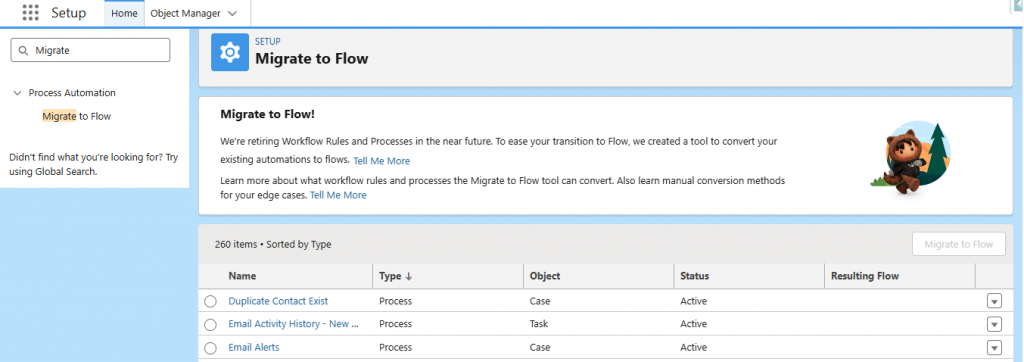
Tip: A simpler way to accurately migrate immediate-action branches is by using the Migrate to Flow tool. This is a standard out-of-the-box Salesforce tool designed to help migrate Process Builders and Workflow Rules in light of their retirement.
Using this tool, you can select the specific branches you want to migrate and proceed with the conversion. However, be sure to review the tool’s limitations carefully before using it for complex use cases.
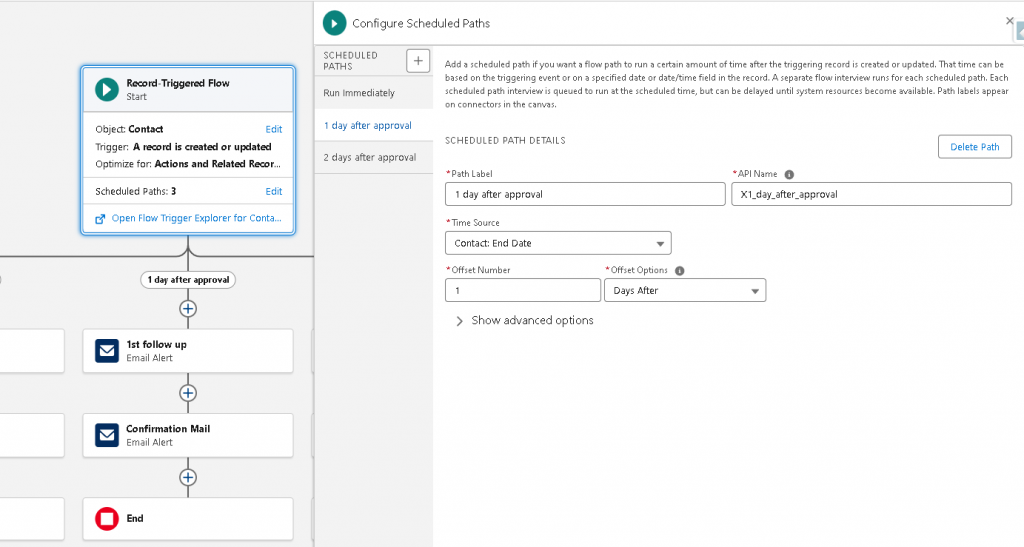
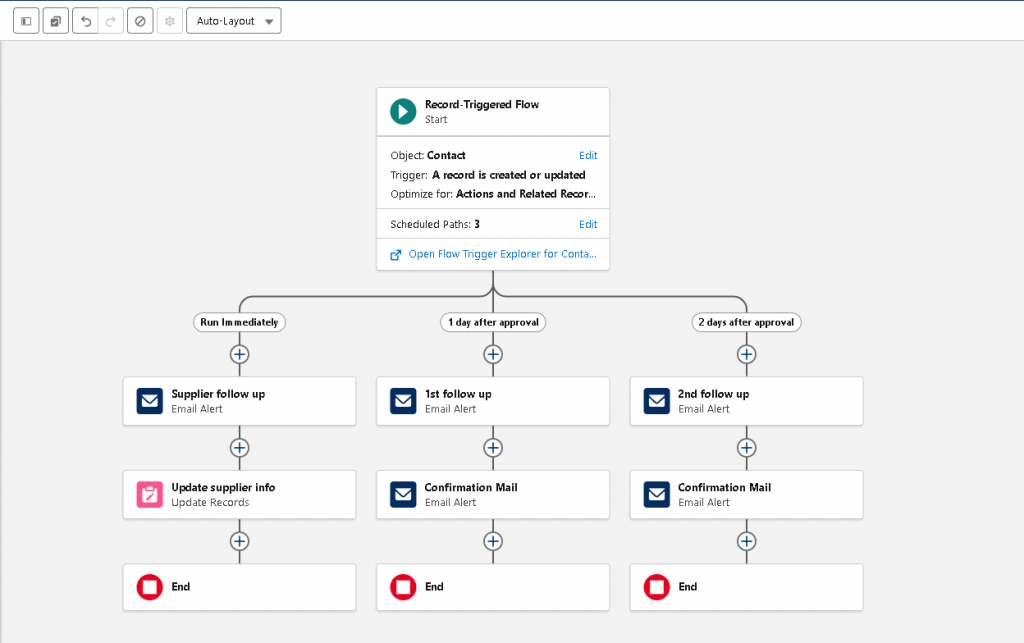
For the scheduled-action branch, we’ll create a separate record-triggered Flow with scheduled paths. In the Scheduled Paths section, configure one scheduled path for each scheduled action defined in the original Process Builder.
Once all scheduled paths are added, the second Flow should look like the one below.
Congratulations! You have successfully converted a Process Builder with scheduled actions into fully functional Flows. Make sure to debug your flows thoroughly before activating them in your sandbox or production environment.
These are some of the effective ways to convert Process Builders to Flows. There’s no one-size-fits-all solution — the best approach depends entirely on your specific use case. The key is to thoroughly understand your requirements. Once that part is clear, choosing the right migration method becomes much easier.
I hope this blog helped you, even if just a little, in navigating that journey 🙂
[1]Salesforce Workflow Rules & Process Builder End of Support – https://help.salesforce.com/s/articleView?id=001096524&type=1
Author: Madhumita Uppu